Import your Notion journal into WOYM

Turn every Notion page into a journal entry, with its formatting, images and dates. It takes a few minutes, and running it twice never makes copies.

1

Open your journal page in Notion

Open the page that holds your journal: the database with your entries, or the page they sit under. Then click ⋯ at the top right and choose Export.

To export a whole workspace instead, go to Settings, then Export all workspace content. Every page in it becomes an entry, so a single journal page is usually what you want.

Share
Copy link
Duplicate
Move to
Version history
Import
Export
⋯ at the top right of the page
2

Choose HTML and include subpages

In the export window:

  • Export format: HTML
  • Include content: Everything, so images come too
  • Include subpages: on
  • Create folders for subpages: on

Click Export. Notion downloads a ZIP, or emails you a link to it for a big journal.
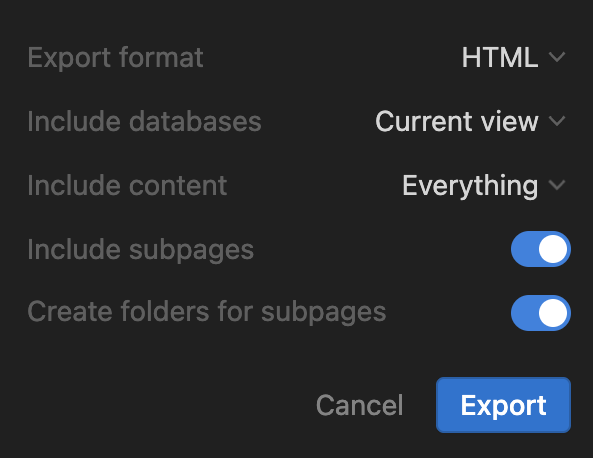
Notion export settings: Export format HTML, Include subpages on, Create folders for subpages on
Notion's export settings. Screenshot from Obsidian Importer (MIT licence).
3

Choose the ZIP in WOYM

Sign in at woym.app, open Settings, then Import Entries. Click Import from Notion and pick the ZIP. There is no need to unzip it. If you already have, use or choose an unzipped folder.

New to WOYM? Create a free account first. The free plan has unlimited entries.

Import Entries
Choose the ZIP from Notion. Each entry keeps its date.
Import from Notion
or choose an unzipped folder
woym.app → Settings
4

Keep the tab open until it finishes

WOYM turns each page into an entry, then uploads its images and videos. When it is done you see how many pages came across, and which were skipped and why.

Stopped halfway, or lost your connection? Run the import again with the same ZIP. Pages already in WOYM are not added twice.

What comes across

Comes across
✓Every page as its own entry, with the page title as its heading
✓Bold, italics, underline, strikethrough, links and inline code
✓Headings, bullet, numbered and to-do lists, quotes, callouts and code blocks
✓Images, videos and audio you uploaded to Notion
✓Dates from a Date column, the Created time, or the page title
Stays behind
–Other database columns, like tags or status
–Comments and page history
–Embeds, and images linked from other websites
–Colours and page icons

Questions

Which date does each entry get?+
A database row uses its Date column, or its Created time. Any other page uses a date in its title, like "March 3, 2024". A page with no date at all gets the export date, and WOYM tells you how many those were so you can change them.
What if the import stops halfway, or I run it twice?+
Run it again with the same ZIP, or a newer export of the same pages. A page already in WOYM is recognised by its Notion ID and is not added again.
I exported as Markdown. Does that work?+
No, WOYM reads Notion's HTML export, which keeps the formatting and dates. Export again and pick HTML as the format.
Notion gave me a ZIP with more ZIPs inside. Is that a problem?+
No. Notion splits large exports into parts, and WOYM opens each part for you. Choose the outer ZIP.
Why was the page I exported from skipped?+
A page that only links to other pages, like a journal database or an index, has nothing of its own to import. The pages it links to each become an entry.
Will images from the web come across?+
Images you uploaded to Notion do. Images Notion only links to on another website stay on that website.

Coming from Apple Journal instead? See how to import Apple Journal entries.

A journal built for journaling

WOYM works on iPhone, Android and the web, with habits, moods and a writing streak. Free to start.